
Setting up Mote PDF in the Google Admin console
Mote PDF opens any PDF in Google Drive with the full set of Mote tools, so students can hear it, translate it, look up words, and write on it. This article is for Google Workspace admins. It covers two things: installing Mote PDF for your school or district from the Google Workspace Marketplace, and approving it in the Google Admin console so that students can sign in.
The second step is the one that gets missed. Mote PDF appears in the Admin console as its own app, separate from the Mote Chrome Extension, so approving Mote for Google sign-in in the past does not cover it.
Before you start
You need a Google Workspace admin account that can install Marketplace apps and change API controls. You will also want these to hand:
- Marketplace listing: Mote PDF on the Google Workspace Marketplace
- App name: Mote PDF
- App ID (OAuth client ID): 143463670159-a7gcgo7r7ebqautec0hmqvcs3t8rbevj.apps.googleusercontent.com
Step 1: Install Mote PDF from the Google Workspace Marketplace
- Sign in with your admin account and open the Mote PDF listing. You can also get there from the Admin console: go to Apps > Google Workspace Marketplace apps > Apps list, click Install app, and search for Mote PDF.
- Click Admin install, then Continue.
- Review the access Mote PDF asks for (listed below).
- Choose who gets the app: Everyone at your organization, or Certain groups or organizational units if you are rolling it out to particular schools or grades. Make sure the student organizational units are included.
- Click Finish.
Once the install has applied, staff and students can right-click any PDF in Google Drive, choose Open with, and pick Mote PDF. Google says changes can take up to 24 hours to reach everyone, though it is usually much quicker.
What Mote PDF asks to access
Mote PDF requests the minimum it needs to open a PDF and save it back:
- Google Drive: see, edit, create, and delete only the specific Google Drive files a user opens with Mote PDF. It cannot browse or read the rest of a user's Drive.
- Google Sign-in: the user's email address and basic profile information, used to sign them in to Mote.
Step 2: Approve Mote PDF in App Access Control
Google Workspace for Education blocks users designated as under 18 from signing in to any third-party app that an admin has not configured. In practice this means teachers can often use Mote PDF straight away while students see an "Access blocked" message when they try to sign in. Marking Mote PDF as a trusted app fixes this.
- In the Admin console, go to Security > Access and data control > API controls, then click Manage App Access. If you are signed in as an admin, this link takes you straight there.
- Click Configure new app.
- Search for Mote PDF, or paste the App ID from the top of this article, and select it from the results.
- Choose the organizational units the setting applies to. Leave the top-level unit selected to cover everyone, or pick the units that contain your students.
- Under Access to Google data, select Trusted. If your district prefers to limit apps to named scopes, choose Specific Google data instead and allow the Drive and Google Sign-in scopes that Mote PDF requests.
- Click Continue, review the summary, then click Finish.
If students have already tried to use Mote PDF, it may already be in your app list. In that case, open Mote PDF from the list and change the setting under Access to Google data on its details page, which looks like this:
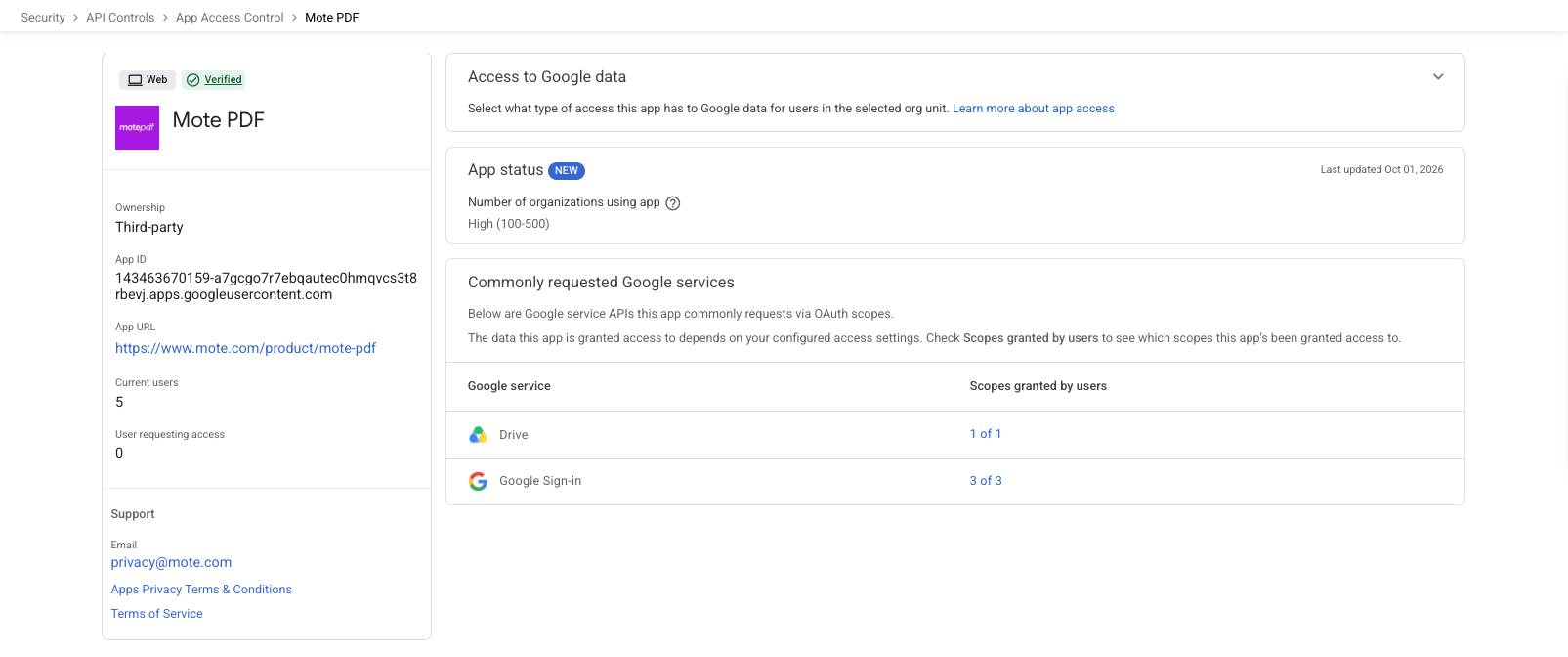
The same page shows User requesting access. Students who were blocked are given the option to request access, so a number above zero here is a good sign that this step is what they are waiting on.
Step 3: Check that it worked
- Ask a student, or use a test account in a student organizational unit, to go to app.mote.com/pdf and sign in with Google.
- In Google Drive, right-click a PDF and choose Open with, then Mote PDF.
If the student still sees "Access blocked", give it a little time, as Google can take up to 24 hours to apply the change. Then check that the student's organizational unit is covered by both the Marketplace install and the App Access Control setting.
Related setup
Mote PDF and the Mote Chrome Extension are approved separately. If you have not set up the extension yet, see How to install the Mote Chrome Extension from the Google Admin console, and Help, students can't log in to Mote using Google for approving Mote itself for Google sign-in.
For what staff and students can do once Mote PDF is in place, see Getting started with Mote PDF and Opening a PDF from Google Drive. Our privacy and data protection commitments are at mote.com/privacy.
If you get stuck, email support@mote.com and tell us what the student sees when they try to sign in.