
Who can listen to student podcasts in Motecast, and what can they see on the class wall?
When you set a podcast for a class in Motecast, you choose who can listen to your students' work and whether you review it before it is shared. This article explains what each choice means, and what you, your students, colleagues and parents each see.
The two settings
You choose both when you Set a podcast. You can change them later in the Sharing card on the assignment's page. Each new assignment starts with the settings you used last time.
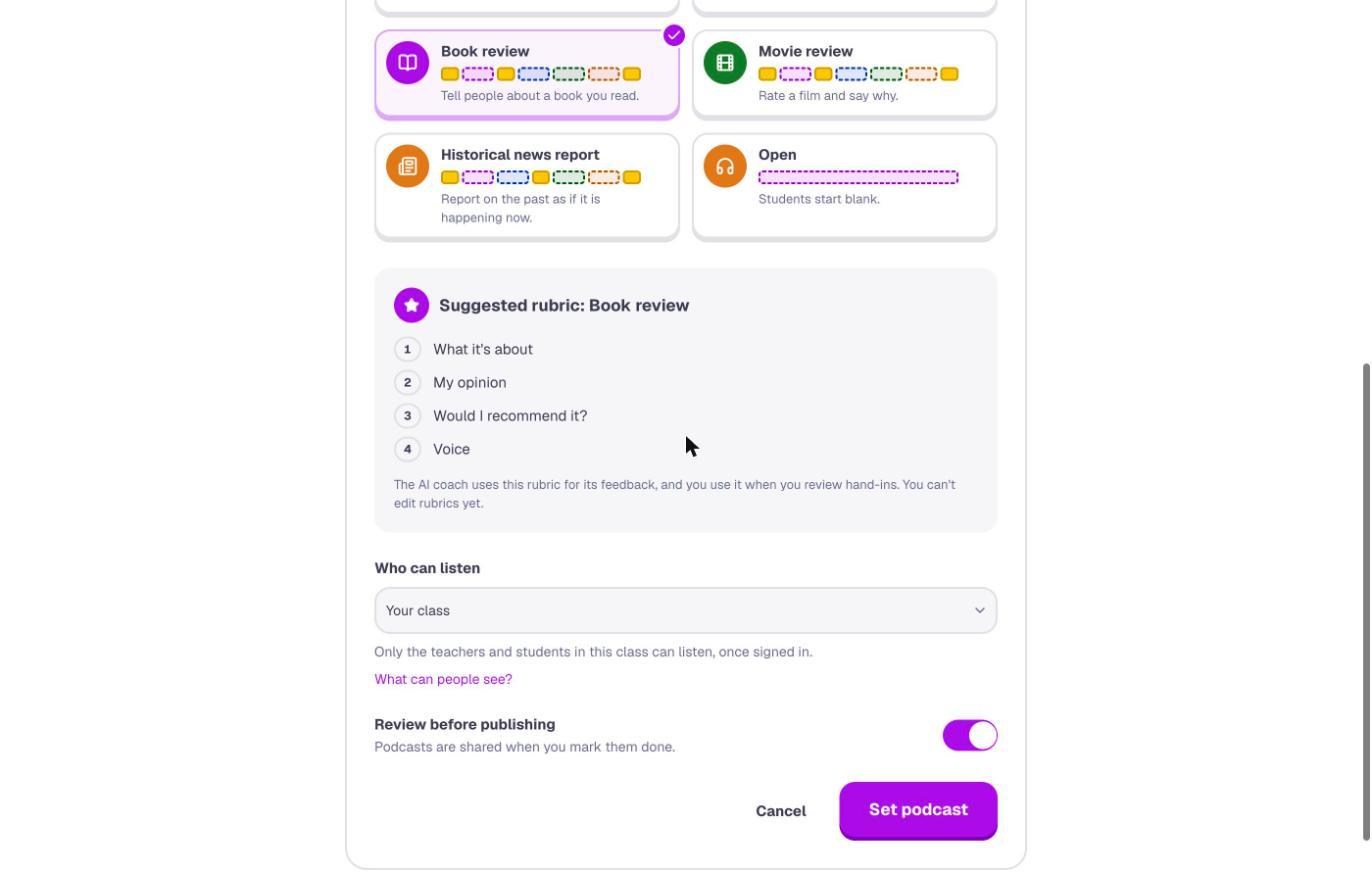
The two settings in Set a podcast.
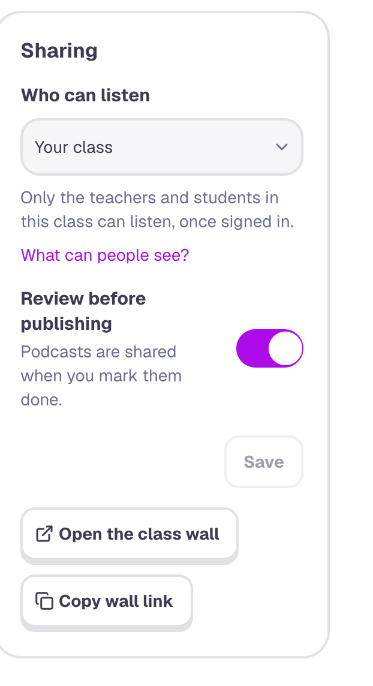
The Sharing card on the assignment's page.
Who can listen
| Setting | Who can listen | Do they need to sign in? |
|---|---|---|
| Your class | The class's teachers and the students in the class | Yes |
| Your school | Your class, plus anyone signed in to Mote with an account at your school | Yes |
| Anyone with the link | Anyone you send the link to, including parents. Pages are not listed in search engines | No |
Your school is only offered if your Mote account belongs to a school or district.
A parent's own free Mote account does not count as being in your class or your school. To share with parents, choose Anyone with the link.
Review before publishing
- On: a student's podcast is shared when you mark it Done.
- Off: a student's podcast is shared as soon as they hand it in, provided our automatic check finds nothing to flag. The check listens to the recordings and reads the episode's title and the names of its parts. Anything it flags waits for you, and is shared when you mark it Done.
If you choose Anyone with the link with review off, Motecast warns you that work can be heard publicly before you have listened to it. You can keep both settings.
What your students choose
When a student hands in, Motecast tells them who will be able to listen. They can tick Don't share mine. You still receive their work, and it is not shared with anyone else. A student can change their mind later, in either direction.
If you send work back with Needs another go, it is taken down until the student hands it in again.
The class wall
Every assignment has a class wall: one page with a tile for each student in the class. Open it with Open the class wall in the Sharing card, and send it to others with Copy wall link.
Whoever can listen to the assignment can open its wall. What they see depends on who they are.
| Who is looking | Published work | Work that is not published |
|---|---|---|
| You and the class's other teachers | Cover, title, name and length | Where each student is: Handed in, Working on it or Not started. For handed-in work you also see the title and cover |
| Students in the class | Cover, title, name and length | Where each classmate is, but not the title or cover of unpublished work |
| Everyone else (colleagues, parents) | Cover, title, name and length | Only Not published yet, the same for every student |
So a parent or a colleague can never tell which student has handed in, which is still working, which was sent back and which has not started.
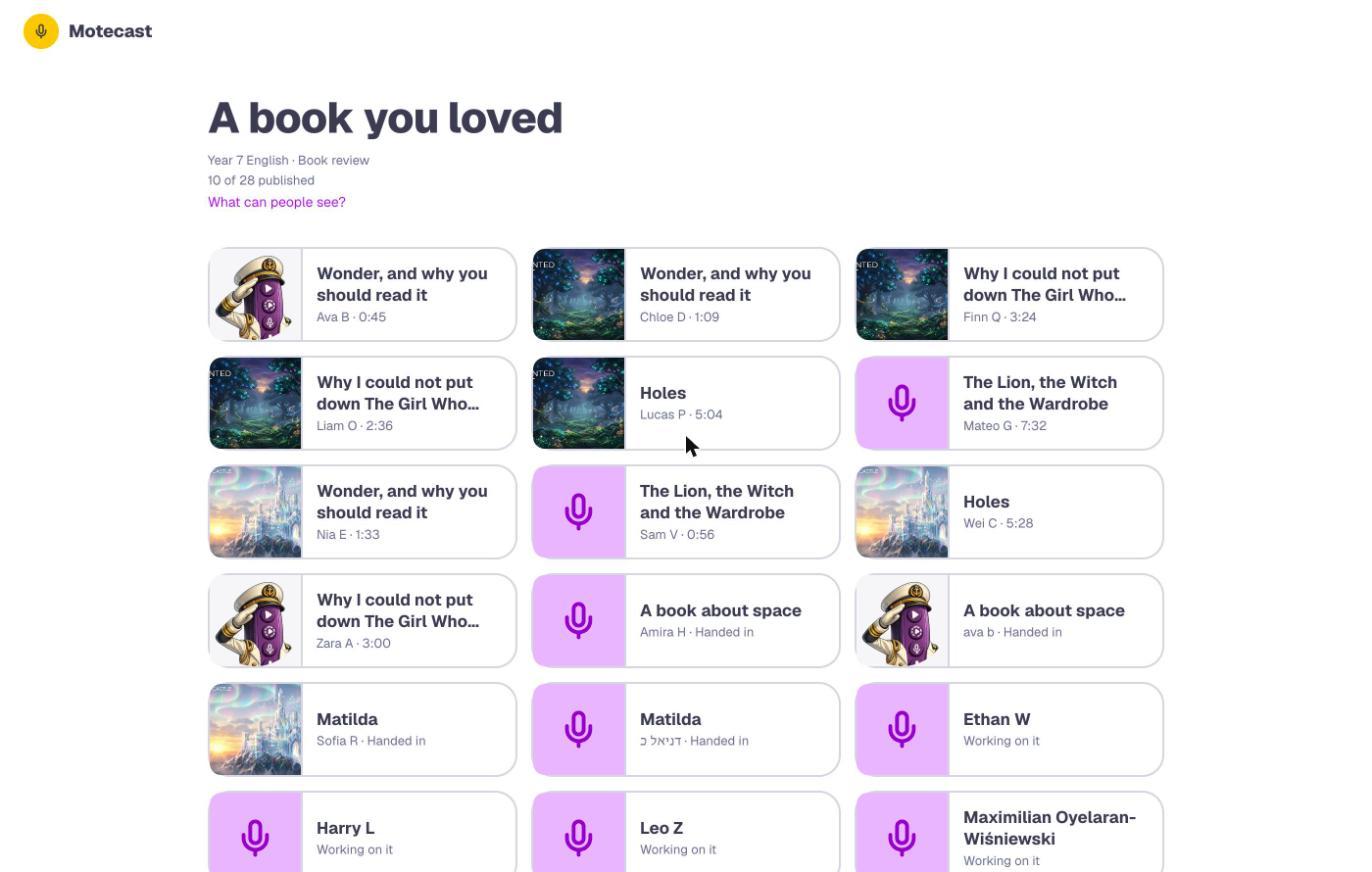
The wall as you see it.
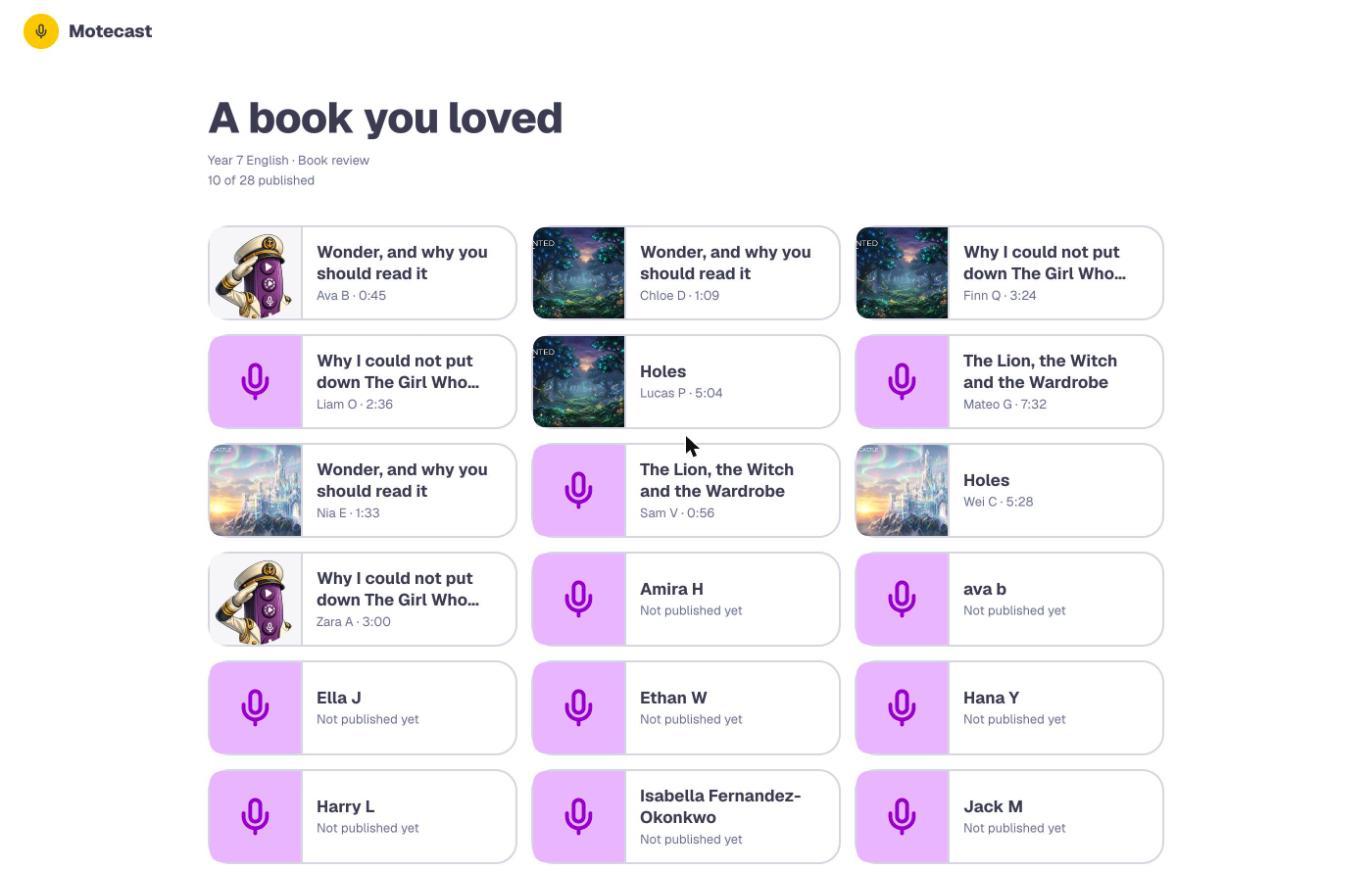
The same wall as a parent or colleague sees it.
Showing the wall to other people
Your own view of the wall shows where every student is. If you put the wall on a screen at a staff meeting or a parents' evening, show it the way visitors see it:
- Make sure Who can listen is set to Anyone with the link.
- On the assignment's page, select Copy wall link in the Sharing card.
- Open a private (incognito) window in your browser, where you are not signed in to Mote.
- Paste the link into the address bar.
The wall now shows only published work, with Not published yet for every other student.
Names on the wall
Students appear under a shortened name, such as "Ava B". Full names and email addresses are never shown.
Listening from the wall
Selecting a published tile opens that episode, with a link back to the wall. A visitor who arrives through the wall is not given a link to the student's own podcast page.
When someone cannot open a page
Someone who is not allowed to listen sees This page is private (or This episode is private) and nothing about the class, the student or the work. If they are not signed in, they are offered Sign in. If they are signed in and still cannot listen, the page suggests they ask the teacher who shared it.
Changing who can listen later
- Open the assignment from Assignments.
- In the Sharing card, choose a different option under Who can listen.
- Save.
The change applies straight away to everything already published for that assignment, on the wall and on each student's own podcast page.
When you make the audience smaller (for example from Anyone with the link to Your class), Motecast also moves each recording to a new address, so an audio address someone copied earlier stops working. The same happens when a student stops sharing or you send work back.
The wall's own link never changes. To close a wall to people who already have the link, make the audience smaller.
Other things to know
- Archived classes: when you archive a class, its walls close to everyone except the class's teachers.
- Students who leave: a student removed from the class no longer has a tile on its walls.
- Deleted accounts: a student who deletes their Mote account no longer appears on any wall.
- Students who have not joined yet: a student on your roster who has not signed in to Mote appears as Not started.
- If you delete your own account: your students' published work for your assignments is taken down. Each student can publish theirs again as a personal podcast.