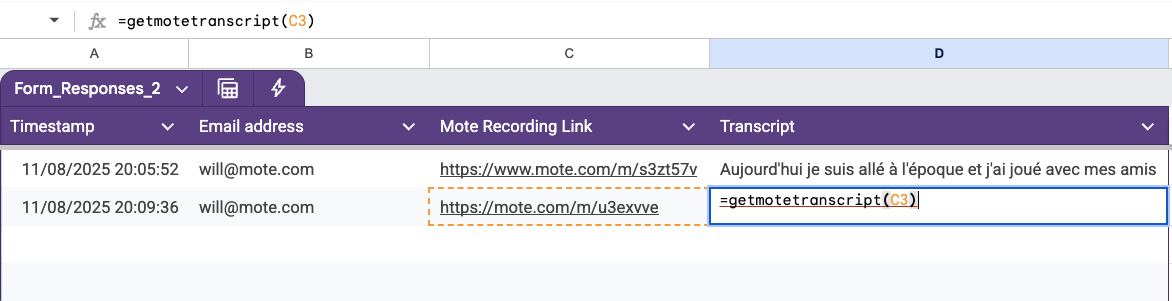
How can I view a Mote recording Transcript in Google Sheets?
If you're trying to extract transcripts from a list of Mote recordings, here's a quick and easy fix using an Google Apps Script.
-
Create the Google App Script
In your Google Sheet with mote links, Go to Extensions > Apps Scripts
Delete anything in the text editor, then paste the code below into the text editor.
function GetMoteTranscript(url) {
  try {
    // Extract the asset_id from the URL
    var assetId = url.split("/").pop();
    if (assetId.length != 7) {
      throw new Error("The asset_id is not the expected length of 7 characters.");
    }

    // Prepare the API URL for the asset_id
    var apiUrl = "https://s.mote.com/v1/m/status/" + assetId;
    var response = UrlFetchApp.fetch(apiUrl, { method: "get", muteHttpExceptions: true });
    var jsonResponse = JSON.parse(response.getContentText());

    // Check for 'transcriptDisplay' attribute and return it
    if (jsonResponse && jsonResponse.moteStatus && jsonResponse.moteStatus.transcriptDisplay) {
      return jsonResponse.moteStatus.transcriptDisplay;
    } else {
      throw new Error("transcriptDisplay attribute not found.");
    }

  } catch (e) {
    return e.message;
  }
}
Click 'Run'.
You may be asked to give the app permission to run.
-
Use the script
Back in Google Sheets, access your script using the command
=getmotetranscript(A1)
Replace A1 with the cell reference of a mote recording.
If the mote has a transcript, it will be displayed in the cell.